
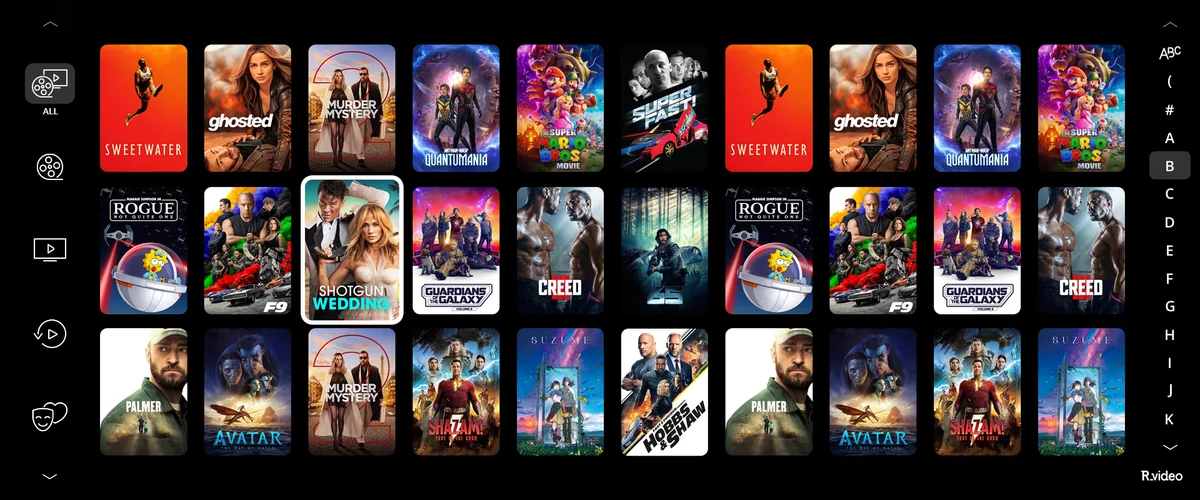
R_video’s three-row widescreen poster wall. Official interface illustration: R_volution.
A scope screen can make a film library feel at home in a dedicated cinema room, provided the browsing interface fits the screen too. R_video offers poster layouts for screens with 2.35:1, 2.39:1 and 2.40:1 aspect ratios. This guide explains where to find them and how to choose a layout you can read comfortably from your seat.
R_volution documents this capability as available since December 2025, and lists the two- and three-row layouts under R_video 1.12.51 in its application changelog. This guide reflects those published instructions, checked on 20 November 2026.
Choose the poster layout in R_video
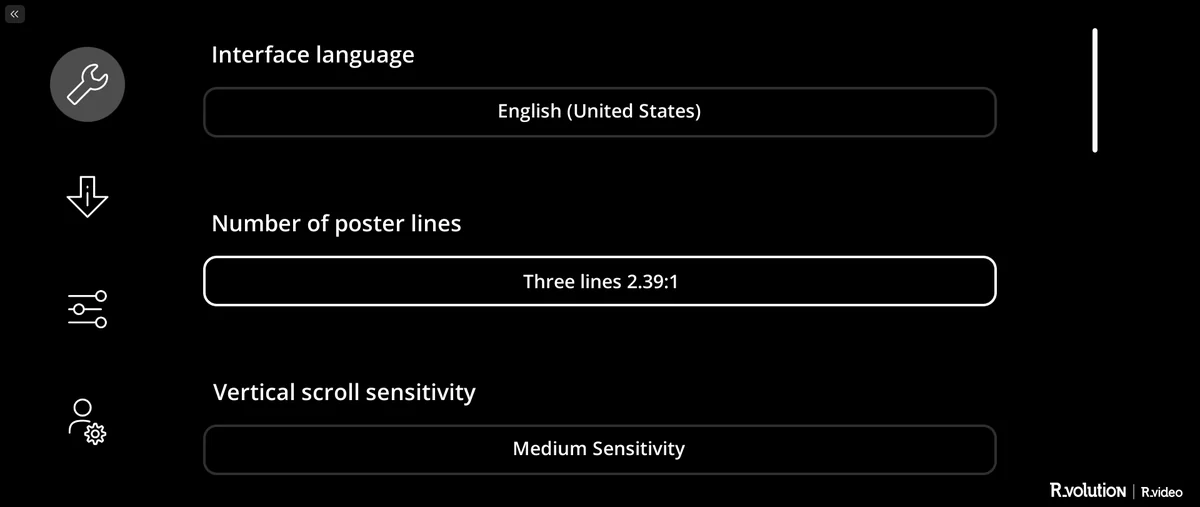
Open R_video’s menu, enter Configuration and use the first settings tab. Find Number of poster lines, then select Two lines 2.39:1 or Three lines 2.39:1. Although those option names use 2.39:1, the manufacturer’s widescreen instructions also cover the nearby 2.35:1 and 2.40:1 screen shapes.
Make a note of your current selection before trying either mode. Return to the poster wall and browse several titles rather than judging the result from the settings page alone.
Two rows or three?
Start with two rows if larger artwork and easy recognition matter most. Try three when you prefer a denser overview of your collection. Our practical suggestion is to compare both from your usual viewing position: check the selected-poster outline, title details and navigation at the edges of the screen.
The useful choice is the one that makes finding a film easier in your room. There is no need to choose the denser layout simply because it shows more covers.
Keep the interface separate from the film’s picture
The documented control changes the library’s poster layout. Treat that as a separate decision from how a movie itself is displayed. After browsing, play a familiar title and check its framing and subtitles using your normal playback settings. Do not assume that choosing a widescreen poster wall also configures every film’s presentation.
Add aspect-ratio categories for easier browsing
R_volution also documents a way to organise films by their picture shape. Open Categories, use the menu to create a category, give it a ratio-based name and choose the matching icon. Repeat for the ratios you actually use.
Assign films individually, or use multi-selection for titles whose ratios you already know. These are categories you create and populate; the official category tutorial does not describe this procedure as automatic classification. Start with a small, familiar group before reorganising a large library.
Check the application before changing firmware
The layout feature is documented in R_video’s application release notes. Check the installed app version and the official downloads if the choices are missing. Keep the app package matched to your player: the R_video download page separates the original Realtek-based PlayerOne from Amlogic models such as PlayerOne 8K and PlayerMini.
Finish with a simple check: browse a few posters, open a film’s details, start playback and return to the library. Keep the layout that remains clear and comfortable throughout that sequence.